NestSheet → CadLink PRESET IN THE BOX

Export from NestSheet to CadLink Digital Factory — a clean hand-off.

Digital Factory builds and chokes the white underbase inside the RIP, straight from transparency. That makes the alpha boundary NestSheet ships the whole game — so the boxed CadLink preset is built around exactly one thing: clean, binary alpha.

Facts checked — preset values quote the shipped file cadlink-default.json; RIP claims carry vendor sources below.

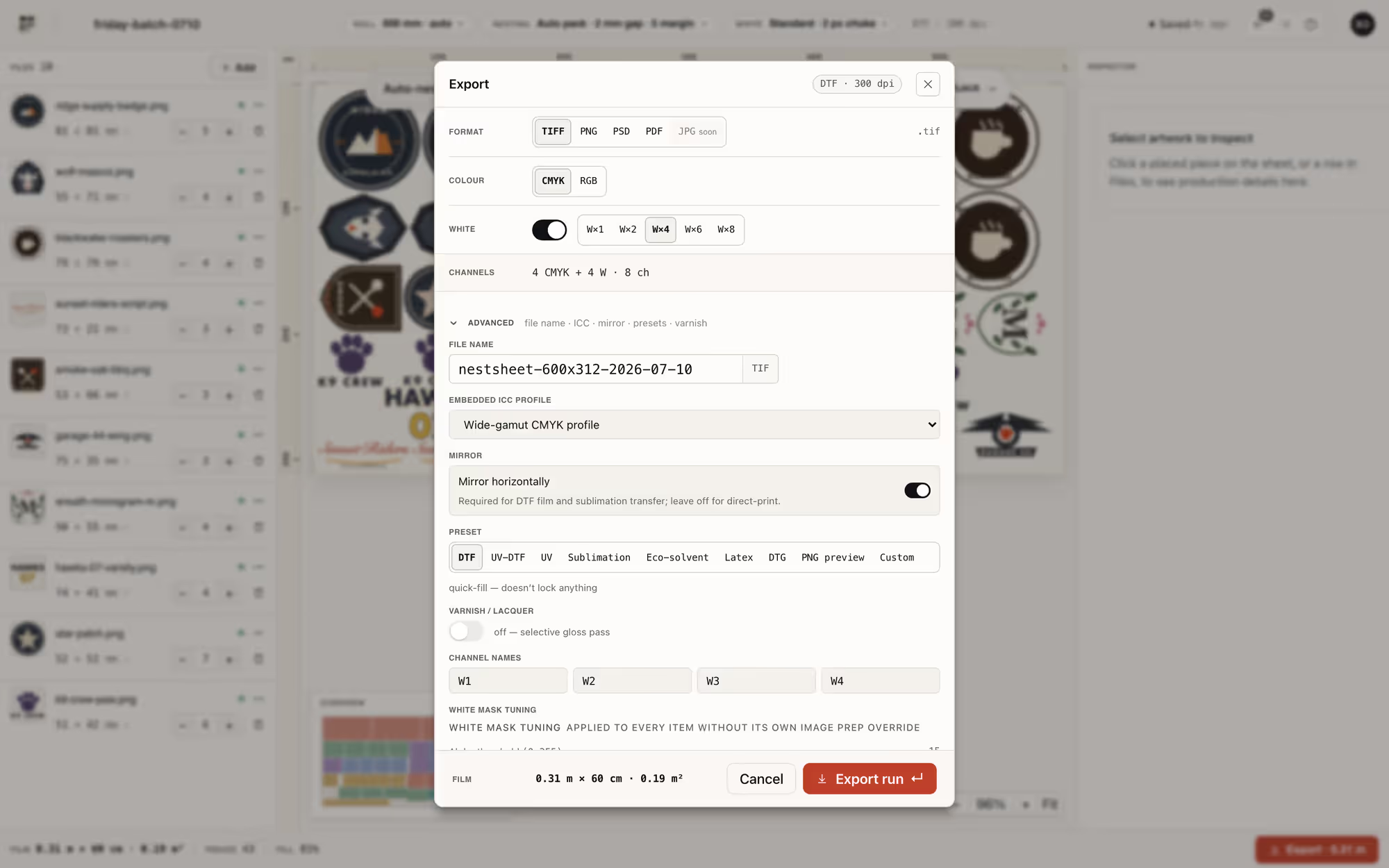
NestSheet export modal set up for a CadLink Digital Factory hand-off: format cells with TIFF, PNG, PSD and PDF, white and varnish channel counts, ICC selector and mirror toggle in the Advanced section
The export modal: format, channels, ICC and mirror — the whole hand-off in one panel.

The RIP

What CadLink Digital Factory is — and what it wants.

In Digital Factory, transparency is not decoration — it is the underbase. CadLink’s own documentation puts it plainly: editing the transparency layer “is editing the underbase layer”. The RIP carries wizards to set white choke, underbase strength under black, and maximum white ink — all downstream of the alpha your file arrives with.

So the division of labour is unusually crisp: NestSheet nests the sheet, repairs the alpha (invisible pixels, fringes, background remnants) and ships a flat PNG with binary transparency; Digital Factory owns everything white. The two jobs meet at one line — the edge of your artwork.

How-to

The hand-off, step by step.

Five steps from nested sheet to a file Digital Factory ingests — by hand or through a hot folder.

  1. Nest on the roll you actually run

    Auto-nest packs the sheet on your roll width (300–1800 mm presets, custom up to 2000 × 10000 mm) with the 2 mm gap / 5 mm margin defaults. Identical copies land as tidy rows, which also makes the RIP-side preview easier to sanity-check.

  2. Clean the alpha before it becomes white ink

    Digital Factory prints white wherever the file is opaque — including pixels you cannot see. Run the Inspector on suspect files: fix-invisible knocks out the low-alpha survivors of background removal (any pixel at or below your cutoff — up to 50 of 255), and fringe repair takes the grey halo off hard edges. What you fix here never becomes stray white on film.

    NestSheet files rail after a mixed upload: per-file DPI badges and warnings that flag risky artwork before it reaches the sheet — the hygiene pass before Digital Factory derives white from the alpha
    Catch risky files on the rail — before their alpha becomes white ink.
  3. Export the PNG lane

    Pick PNG · RGB in the export modal: 8-bit sRGB with alpha preserved — the boxed preset’s format, and the shape Digital Factory’s transparency-driven underbase works from. No spot channels needed on this lane: the RIP makes its own white.

  4. Prove orientation in the exact queue

    The boxed preset declares Mirror on, but the export control can retain operator or preset state; choosing the PNG row does not guarantee a fresh unmirrored state. Record the current control, export an asymmetric target with readable text, and import it into the exact Digital Factory version and queue. Decide which stage owns the flip only after that controlled preview and small test.

  5. Feed the queue — by hand or by hot folder

    Import the PNG into your queue, or drop it into a Digital Factory hot folder: CadLink’s documentation covers enabling template hot folders, after which dropped jobs feed the queue hands-free. The boxed preset also describes the bundle shape for that route — a zip carrying the design plus a job manifest and header, the layout our prepress pipeline writes for hot-folder use.

The preset

What the boxed preset pins.

Every value read from server/assets/rip-profiles/cadlink-default.json — the file the product loads.

Shipped values of cadlink-default.json
Field Shipped value
Preset file cadlink-default.json
Preset name CadLink Digital Factory
Format PNG
Alpha binary snap at threshold 128
Colour space sRGB
Mirror on (film transfer)
Resolution 300 dpi
All-white fix off — Digital Factory manages white internally
Hot-folder bundle zip · design + manifest + job header
File naming {order}_{design}_{w}x{h}mm.png

Failure modes

Typical failure modes — and what prevents them.

Every one of these traces back to the same root: Digital Factory trusts your transparency completely.

Dusty white outside the artwork

SymptomFaint white speckle prints around designs — leftover low-alpha pixels from background removal, invisible on screen but real to the RIP.

PreventionThe preset’s binary snap at threshold 128 drops them to fully transparent; Inspector fix-invisible removes them at the source so they are gone in every future export of that file too.

Grey fringe becomes a white halo

SymptomAnti-aliased edges keep semi-transparent pixels; underbase generated from them prints as a pale ring the garment colour bleeds through.

PreventionBinary alpha turns every edge pixel fully on or fully off, then Digital Factory’s own Set White Choke wizard pulls the white inside the colour by the amount you calibrate on its chart.

White tuned in two places

SymptomWhite density looks right in one preview and wrong on film because both the file and the RIP tried to manage it.

PreventionOn this lane NestSheet ships no white at all — a flat PNG. Set underbase strength, choke and maximum white once, in Digital Factory’s wizards, and the preview you trust is the one that prints.

Half-transferred jobs in the hot folder

SymptomA watched folder ingests a file while it is still being copied, and the queue gets a truncated job.

PreventionUse the bundle route: one zip per job means the watcher sees a single finished artefact, not a stream of loose files mid-write. That is why the preset describes the bundle as zip rather than folder.

FAQ

The questions operators actually search.

Which Cadlink version do you need?
NestSheet does not care — the preset makes no version assumption, and a clean-alpha sRGB PNG is the least version-sensitive file you can feed Digital Factory. Check CadLink’s own edition pages for what your printer’s driver needs; the white wizards and hot folders referenced here are documented in CadLink’s standard Digital Factory help.
How do you fix a dusty white halo?
Kill its source: semi-transparent pixels. Run fix-invisible in the Inspector, export with the binary-alpha PNG lane, then calibrate choke in Digital Factory — its Set White Choke wizard prints a chart and applies your preferred value. If dust persists after all three, it is on the film or the powder, not in the file.
Is there free DTF RIP software?
Digital Factory is paid software, and most named DTF RIPs are the same. NestSheet is not a RIP and does not replace one — it is the free-to-start prepress layer in front: the complete workflow and CadLink preset are on Free, with 30 m² of exported sheets each UTC month.

Keep going

Related on this site.

Nest a sheet and export for Digital Factory — free.

Clean-alpha PNG export and the CadLink preset are on every plan, including Free. Your white stays where you tune it — in the RIP.

PNG · clean alpha · sRGB Hot-folder zip bundle Free forever · no card